

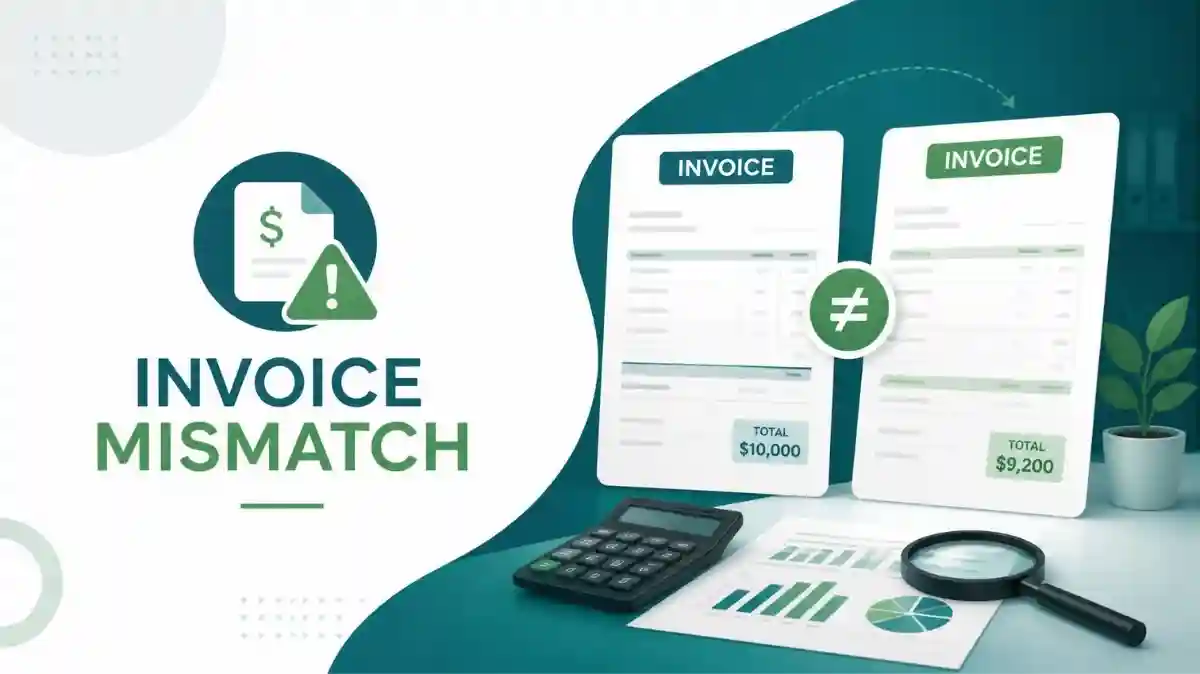
An invoice can be genuinely paid while QuickBooks still shows it as unpaid. In many cases, the customer did pay—the issue is that the payment was recorded incorrectly, was not linked to the correct invoice, or was entered in a way that did not clear Accounts Receivable.
These mismatches can make Accounts Receivable look overstated, create confusing customer balances, and make it difficult to identify which invoices are actually outstanding. The safest approach is to trace the payment from the bank or payment platform back to the customer and invoice, then correct the underlying issue.
1. Why Does a Paid Invoice Still Show as Unpaid?
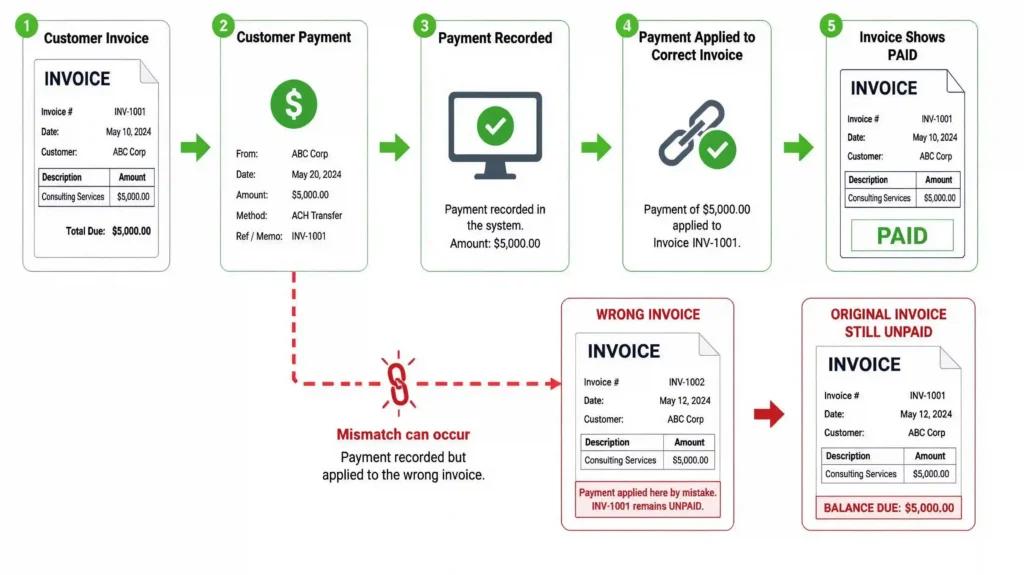
QuickBooks generally needs two things to happen correctly: the payment must be recorded, and the payment must be applied to the correct invoice. If the payment exists but is not linked to the invoice, the invoice can remain open even though money has reached the business bank account.
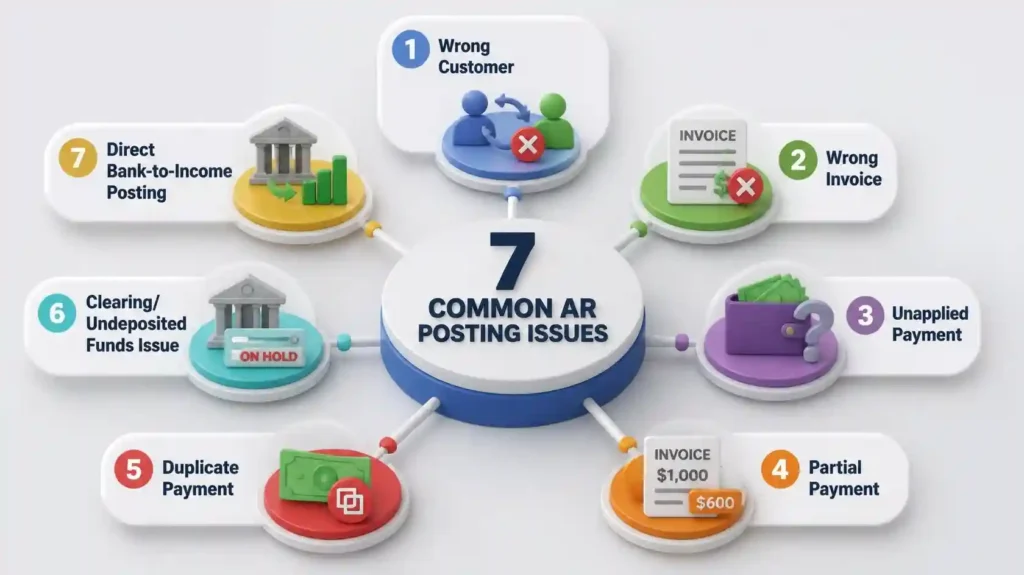
⦁ Payment recorded as a bank deposit instead of a customer payment.
⦁ Payment posted to Accounts Receivable but not applied to the invoice.
⦁ Payment applied to the wrong customer or invoice.
⦁ Payment amount differs because of a partial payment, fee, discount, or adjustment.
⦁ Duplicate payment or duplicate bank-feed transaction.
⦁ Payment remains in a clearing or undeposited-funds workflow.
⦁ Bank transaction added directly to income instead of being matched to the customer payment.
2. The Most Common Mismatch: Payment Recorded, Invoice Still Open
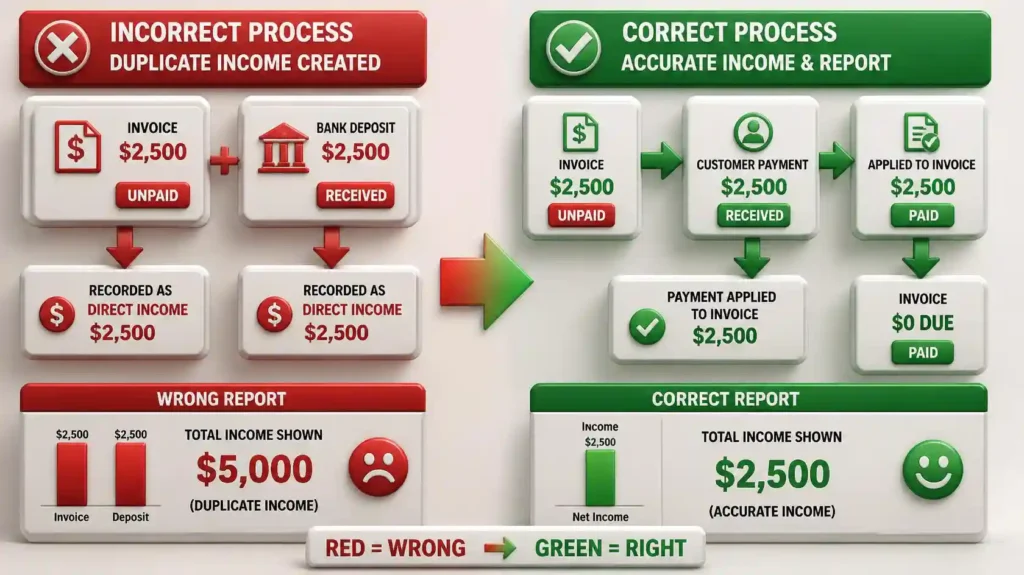
Imagine an invoice for $2,500. The customer pays $2,500 and the deposit appears in the bank. However, the bookkeeper records the bank deposit as income instead of recording it as a customer payment and applying it to the invoice.
The bank balance may be correct, but Accounts Receivable can still show the $2,500 invoice as unpaid. The cash is there, but the customer balance has not been cleared.
3. How to Investigate an Invoice-Payment Mismatchv
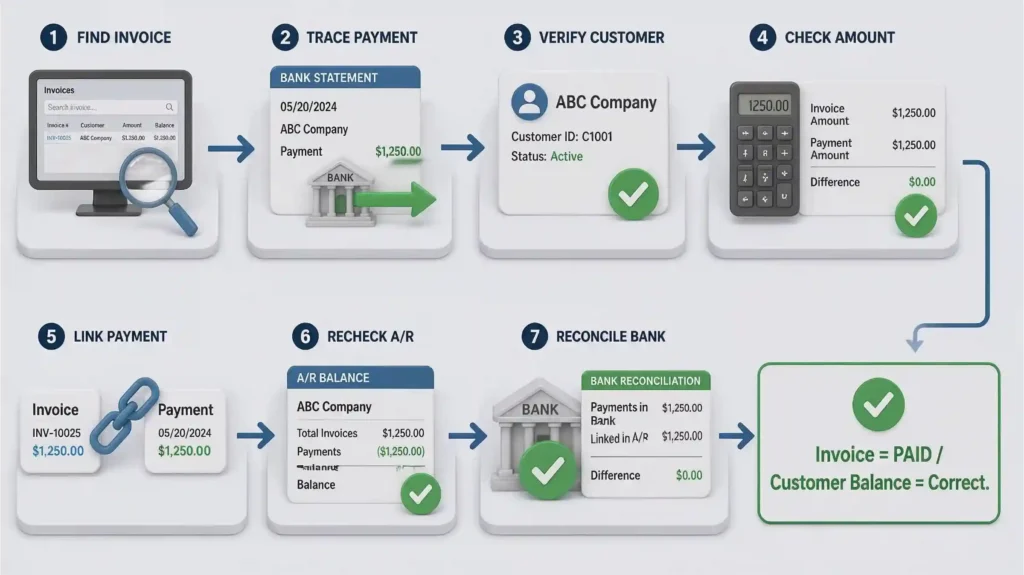
Before changing transactions, trace the complete transaction trail.
- Open the customer profile and review the invoice status.
- Check whether a payment exists for the customer and approximate amount.
- Confirm payment date, amount, method, and deposit account.
- Determine whether the payment is linked to the specific invoice.
- Review the bank or payment-platform transaction representing the cash receipt.
- Check for duplicate payments, deposits, or bank-feed entries.
- Review Accounts Receivable and the customer’s transaction history.
- Compare the accounting record with the original invoice and payment evidence.
4. How to Fix the Mismatch
Case A — Payment Exists but Is Unapplied
If the customer payment is already recorded but the invoice remains open, review the payment and apply it to the correct outstanding invoice. Recheck the customer’s balance after saving.
Case B — Bank Deposit Was Recorded as Income
If a customer payment was added directly from the bank feed as income, the transaction may need to be corrected so the receipt is properly connected to Accounts Receivable and the customer invoice. The exact correction depends on how the original transaction was entered and whether a payment already exists.
Case C — Payment Applied to the Wrong Invoice
Move the payment to the correct invoice when supporting documentation confirms the intended invoice. Do not create another payment just to make the first invoice appear paid.
Case D — Partial Payment
Apply the actual payment amount and leave the remaining balance open. Do not force a partial payment into a full payment unless there is a legitimate discount, credit, or approved adjustment.
Case E — Duplicate Payment
Identify the duplicate and correct it carefully after confirming the bank activity. Avoid deleting or reversing an entry without first understanding what it represents.
5. Checks After the Fix
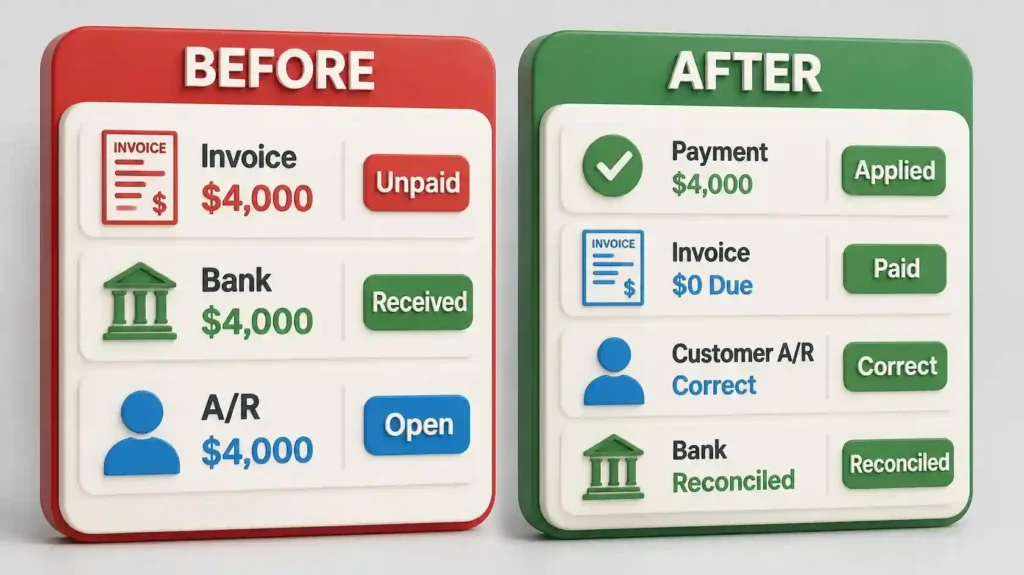
⦁ Invoice status is Paid or correctly reflects the remaining balance.
⦁ Customer Accounts Receivable balance is accurate.
⦁ Bank deposit is represented only once.
⦁ Income has not been duplicated.
⦁ Undeposited Funds or clearing accounts contain no unexplained balance.
⦁ No duplicate customer payment remains.
⦁ Bank account can still be reconciled.
⦁ Correction is supported by the invoice, bank record, or payment-platform evidence.
6. What Bookkeepers Should Avoid
⦁ Do not create another payment simply because the invoice is still showing unpaid.
⦁ Do not categorize the same customer receipt as both income and a customer payment.
⦁ Do not delete transactions before understanding what they represent.
⦁ Do not force an invoice to zero with an unexplained journal entry.
⦁ Do not ignore duplicate deposits or duplicate bank-feed transactions.
⦁ Do not assume that a bank deposit automatically means the related invoice has been paid in QuickBooks.
7. Quick Cleanup Checklist
☐ Identify the unpaid invoice
☐ Confirm the customer’s payment
☐ Match amount and payment date
☐ Verify the correct customer
☐ Verify the correct invoice
☐ Check for duplicate payments
☐ Check Undeposited Funds / clearing accounts
☐ Correct the underlying entry
☐ Confirm invoice status
☐ Review Accounts Receivable
☐ Verify bank reconciliation
When an invoice is paid but still appears unpaid, the problem is often a connection issue between the payment, customer, and invoice—not the cash itself. A careful cleanup process should trace the transaction back to its source, identify the root cause, correct the original entry, and verify the result across Accounts Receivable and the bank.